
Windows 11 Pro Installation Service Charge @ Rs.1000/- to Rs.2000/-

Microsoft Windows 11 Professional Installation from USB Bootable Pen Drive on any type of hardware like Laptop, Desktop & Server hardware.
Use the Installation Assistant
The Windows 11 Installation Assistant is the best option for upgrading the device you’re currently using. After downloading and running the tool from Microsoft’s website, it will guide you through the process. Once it confirms your hardware is compatible, you can accept the license terms and begin the installation.
Clean Installation via USB Drive
A clean installation is ideal for new PCs or for resolving existing system issues. This method will erase all data on the hard drive, so be sure to back up any important files.
Onsite Support available @ Rs.1500/- to Rs.2500/-

PC Hardware Troubleshooting involves diagnosing and resolving issues related to physical components of a computer system. This service encompasses a wide range of problems, including malfunctioning power supplies, faulty motherboards, defective RAM, and overheating issues. Technicians utilize specialized tools to test and identify hardware failures, ensuring that all components are functioning optimally. By providing timely repairs and replacements, this service aims to restore your PC’s performance, enhance its longevity, and prevent data loss, thereby ensuring a smooth computing experience.
Onsite Support available for Computer Maintenance Services @ Rs.1500/- to Rs.2500/-

Computer Maintenance Services encompass a wide range of essential tasks designed to ensure the optimal performance and longevity of your computer systems. These services include regular updates, virus and malware protection, hardware repairs, software installations, and system optimization. By engaging in routine maintenance, businesses and individuals can prevent potential issues, enhance system efficiency, and avoid costly downtime. With expert technicians on hand, you can ensure your devices run smoothly, securely, and are always up-to-date with the latest technologies.
Home Wi-Fi Setup Service @ Rs.3000/- to Rs.5000/-
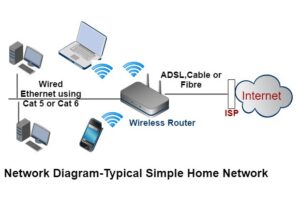
Transform your home connectivity with our Home Wi-Fi Setup Service! Designed for seamless internet coverage, this service features a TP-Link setup in AP Mode, ensuring a blazing-fast connection speed of 1GB. Enjoy uninterrupted browsing, streaming, and online gaming, all while making international calls effortlessly. We include internet setup, so you can get online right away. Perfect for families and professionals alike, our expert installation guarantees a reliable and robust Wi-Fi experience throughout your home. Stay connected with ease!
Access Point Setup of Office @ Rs.8000/- to Rs.10000/-
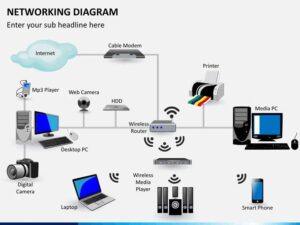
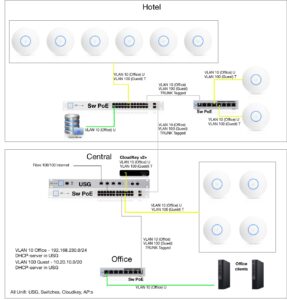
Setting up an Access Point (AP) in an office environment requires a bit more strategy than a standard home router setup. You need to ensure consistent coverage, smooth roaming for employees moving around the office, and a secure separation between internal company data and guest access.Here is a step-by-step deployment guide to getting your office AP up and running efficiently.
1. Physical Placement & Topology
Before diving into configuration, where and how you place the AP drastically impacts performance.
Central & Elevated: Mount the AP on the ceiling or high on a wall in the center of the coverage area. Avoid placing it inside IT closets, behind metal beams, or near heavy electrical equipment (like microwaves or server racks) to minimize signal attenuation.
Power over Ethernet (PoE): Most enterprise/business APs run on PoE. Connect the AP via a Cat6 cable to a PoE Switch or use a PoE Injector. This eliminates the need for an electrical outlet near the ceiling mount.
2. IP Addressing & Management Access
To configure the AP, you need to access its management interface.
Connect to the Network: Plug the AP into your office switch. By default, it will likely grab an IP address via DHCP from your office router/firewall.
Find the IP Address: Log into your main router or use an IP scanner to find the AP’s MAC address and its assigned IP. (If you are using a controller-based system like UniFi, Omada, or Cisco Catalyst, open the controller software to adopt the device).
Set a Static IP: Once logged into the AP’s web interface, change its IP configuration from DHCP to Static. This ensures you can always find the management portal easily in the future (e.g., 192.168.1.10).
3. Wireless Network Configuration (SSIDs)
For a professional office, you should broadcast at least two distinct SSIDs (Wi-Fi network names) to keep traffic secure and organized.
SSID 1: Corporate / Internal Network
Purpose: For company-owned laptops, smartphones, and office printers.
Security: Use WPA3-Enterprise (which authenticates users via a RADIUS server linked to Active Directory/LDAP) if your infrastructure supports it. For smaller offices, WPA3-Personal (or WPA2/WPA3 Mixed) with a strong, complex passphrase is acceptable.
VLAN Assignment: Map this SSID to your primary internal data VLAN (e.g., VLAN 10) so employees can access local servers, NAS drives, and internal tools.
SSID 2: Guest Network
Purpose: For clients, visitors, or employees’ personal devices.
Security: Open with a Captive Portal (a splash page requiring a terms-of-service agreement or guest password) or WPA2-Personal with a separate password.
VLAN Assignment: Crucial. Map this to an isolated Guest VLAN (e.g., VLAN 20).
Client Isolation: Enable Client Isolation (sometimes called AP Isolation) in the advanced settings. This prevents guest devices from seeing or communicating with each other or any internal office hardware.
4. Channel Allocation & RF Optimization
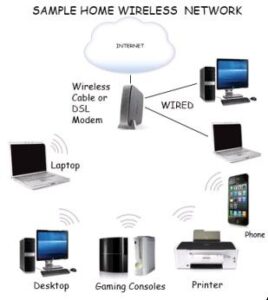
If you have multiple access points in the office, leaving them on “Auto” channels can sometimes cause them to fight for the same airwaves, leading to dropped connections.
2.4 GHz Band: Only use channels 1, 6, or 11. These are the only non-overlapping channels. Set the channel width strictly to 20 MHz to minimize interference.
5 GHz / 6 GHz Bands: Use channels like 36, 44, 149, etc. Set the channel width to 40 MHz or 80 MHz (40 MHz is often safer in dense office buildings to avoid overlap with neighboring businesses).
Transmit Power: Don’t automatically blast every AP at “High” power. If you have multiple APs, overlapping high-power signals confuse client devices, causing them to stick to a distant AP instead of roaming to the closest one. Set power to Medium or Auto and adjust based on testing.
5. Security & Maintenance Best Practices
Change Default Credentials: Immediately change the default admin username and password of the AP itself to a unique, secure password stored in your team’s password manager.
Disable Management over Wi-Fi: If the option exists, restrict access to the AP’s management portal so it can only be accessed via a wired connection or a specific management VLAN.
Firmware Updates: Ensure the AP is flashed with the latest stable firmware to patch security vulnerabilities and improve device stability. Turn on scheduled automatic updates if available (set to run off-hours, like 3:00 AM).
Desktop & Laptop Data Recovery Services @ Rs.2000/- to Rs.5000/-
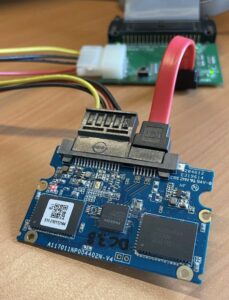 When a desktop or laptop suffers data loss, identifying the failure type—whether it is a software glitch or a catastrophic hardware breakdown—is critical to choosing the right recovery strategy.
Professional labs classify data recovery cases into two distinct categories: Logical (Software) Failures and Physical (Hardware) Failures.
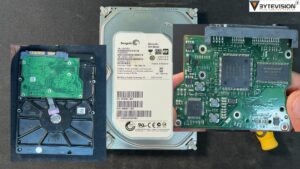
Hard Disk Circuit Board of Seagate HDD[/caption]
1. Logical (Software) Data Loss
In logical failure scenarios, the physical storage drive (HDD or SSD) functions perfectly, but the data becomes inaccessible due to a software-level issue.
Common Causes: Accid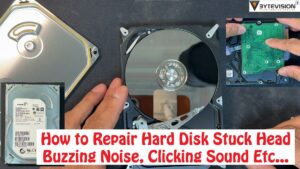 ental deletion, drive formatting, corrupted operating system partitions, malware/ransomware attacks, or broken software installations.
Signs: The system boots but displays errors like “Operating System Not Found,” or a connected external drive prompts you with “You need to format the disk before you can use it.”
The Solution: Professional forensics and data recovery software tools are used to scan the raw sectors of the drive, piece together broken file paths, and extract deleted or hidden partitions.
Critical Precautions:
Stop writing data immediately. If you accidentally delete files or format a drive, do not install new software, download files, or continue running the OS from that drive. New data can permanently overwrite the unallocated space where your old files still reside.
2. Physical (Hardware) Data Loss
Physical failure means the drive components have suffered mechanical or electrical damage. This requires specialized laboratory intervention.
Common Causes: Dropping a laptop, electrical power surges, liquid spills, component degradation from age, or overheating.
Signs:
HDDs (Mechanical): Clicking, grinding, or scraping noises; the drive spins down immediately after spinning up; or the BIOS fails to detect the drive completely.
SSDs (Electrical/Chip-level): The drive fails quietly without any noise, suddenly disappearing from the device manager, or drops into a permanent “busy” state due to controller failure or corrupted firmware.
The Solution: Physical recovery must be handled by certified engineers inside an ISO Class 5 Cleanroom (a dust-free environment) to open mechanical hard drives safely. Techniques include replacing damaged read/write heads, swapping donor PCBs (Printed Circuit Boards), repairing firmware corruption, or performing direct NAND flash chip extraction (chip-off recovery) for dead SSDs.
Critical Precautions:
Power down the system. If an internal or external drive is clicking, running exceptionally hot, or refusing to detect, disconnect the power immediately. Forcing a physically damaged mechanical hard drive to spin can scratch the internal platters, permanently destroying the magnetic data layer and rendering data completely unrecoverable.
What to Expect from a Professional Service Workflow
Reputable enterprise and consumer data recovery services typically follow a strict risk-mitigation pipeline:
Initial Free Diagnostics: The lab evaluates the storage medium to pinpoint the failure type and provides a firm price quote based on the complexity of the repair, rather than the volume of data.
No Data, No Charge Policy: Industry-standard providers do not charge their full recovery fee if the data cannot be successfully retrieved.
Sector-Level Cloning: Technicians use specialized hardware imagers (like DeepSpar or Atola) to make a bit-by-bit clone of the failing drive. The actual recovery operations are performed on the clone, keeping the original source media safe from further degradation.
Secure Verification & Return: Once extracted, the recovered data structure is verified for file integrity and safely transferred to a brand-new external drive or an encrypted storage target for the client.
iPad and iPhone Restoration Services @ Rs.3000/
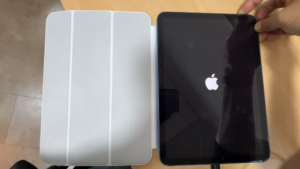
Unlock your iPad with our expert iPad Restoration Services! Designed for those facing locked devices, our same-day software solution ensures a hassle-free reset. Serving customers across India, we provide a detailed manual to guide you through the process. Enjoy peace of mind with our 1-year warranty, guaranteeing quality and reliability. Whether for personal use or business needs, our service is tailored to restore your iPad swiftly and efficiently. Trust us to get you back in control of your device today!
CCTV Onsite Support Services @ Rs.1000/- to Rs.2000/-
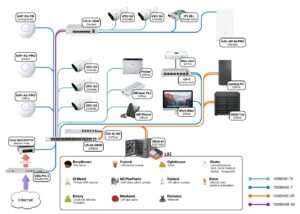
Enhance your security with our CCTV Onsite Support Services, designed to resolve focus issues swiftly and efficiently. Our expert technicians are available for 8 hours to tackle a range of problems, including camera focus corrections, installation support, connectivity troubleshooting, and monitoring display issues. With a proven track record of addressing 1000+ camera focus and installation challenges, we ensure your surveillance system operates flawlessly. Trust us to keep your premises secure and your peace of mind intact.
Computer Networking and Structure Cabling Services @ Rs.2000/- to Rs.5000/-
Whether you are setting up a brand-new office, expanding your current workspace, or upgrading an aging infrastructure, a robust Computer Networking and Structured Cabling system is the backbone of your business operations. It ensures seamless communication, high-speed data transfer, and the scalability needed to support future technologies.
Here is a comprehensive breakdown of professional networking and structured cabling services designed to keep your business connected, secure, and efficient.
1. Structured Cabling Solutions
Structured cabling is the design and installation of a cabling system that supports multiple hardware uses and is suitable for today’s needs and tomorrow’s growth.
Copper Cabling Infrastructure: Installation of high-speed Category cables (Cat6, Cat6A, and Cat7) to support up to 10 Gbps data transfer speeds, ensuring minimal cross-talk and maximum throughput for workstations, VoIP phones, and network printers.
Fiber Optic Cabling: Backbone cabling using Single-mode (SMF) and Multi-mode (MMF) fiber optics for high-bandwidth, long-distance connectivity between server rooms, floors, or separate campus buildings.
Patch Panel & Rack Management: Organization and termination of cables into standard 19-inch server racks and network enclosures. We ensure clean cable routing using horizontal and vertical wire managers for easy troubleshooting.
Conduits and Pathways: Clean routing of cables through ceilings, raised floors, and walls using proper conduits, cable trays, and J-hooks to maintain structural integrity and safety compliance.
2. Core Network Infrastructure & Hardware
A reliable cable network is only as good as the hardware routing the data. Enterprise-grade hardware deployment ensures your business traffic moves without bottlenecks.
Switching Solutions: Deployment of managed and unmanaged switches (e.g., Cisco Catalyst, HPE Aruba). This includes configuring Power over Ethernet (PoE/PoE+) to supply power directly to IP cameras, access points, and VoIP devices through the network cable.
Routing & Edge Security: Configuration of enterprise routers and Next-Generation Firewalls (NGFW) to manage internet traffic, establish secure site-to-site VPNs, and protect the internal network from external cyber threats.
Server Room & Datacenter Setup: Complete physical staging of servers (such as HPE ProLiant or Dell PowerEdge), Uninterruptible Power Supplies (UPS), and Environment Monitoring Systems (EMS) to prevent downtime from overheating or power failures.
3. Wireless Network (Wi-Fi) Deployment
Modern workplaces require seamless mobility without sacrificing speed or security.
Wireless Site Surveys: Analyzing your architectural layout, wall thickness, and potential RF interference to map out the exact placement of Wireless Access Points (WAPs).
Enterprise Wi-Fi Implementation: Deployment of high-density Wi-Fi 6 / Wi-Fi 6E / Wi-Fi 7 access points with seamless roaming capabilities, ensuring employees don’t drop connections when moving through the building.
Guest & Internal Network Segmentation: Configuring secure, isolated Virtual LANs (VLANs) and captive portals to keep guest traffic completely separate from sensitive internal business data.
4. Integrated Network Services
Your structured cabling framework can seamlessly integrate other critical IP-based business systems:
IP CCTV Architecture: Designing dedicated physical or virtual networks to handle high-bandwidth HD/4K security camera feeds without slowing down regular business operations.
VoIP and Unified Communications: Cabling and Quality of Service (QoS) configuration to prioritize voice traffic, eliminating jitter and dropped calls on business phone systems.
Access Control Systems: Connecting biometric and smart-card door controllers to the central network for centralized security management.
Why Professional Layout Matters
The Cost of Poor Cabling: Unlabeled, messy “spaghetti” wiring in a server rack isn’t just an eyesore—it increases troubleshooting time from minutes to hours, restricts airflow (leading to hardware failure), and makes scaling your network a logistical nightmare.
CCTV Solution Providers @12500/-
When deploying enterprise-grade surveillance or scaling security infrastructure, navigating the landscape of CCTV solution providers involves looking at two key pillars: the tier-one hardware/software manufacturers driving the technology, and the systems integrators/service providers who handle the architecture, deployment, and regulatory compliance.
Here is a breakdown of the leading global manufacturers and the core service architectures defining the industry today.
1. Top-Tier CCTV Hardware & Software Manufacturers
Choosing the right ecosystem dictates the scalability, image analytics capability, and overall reliability of your deployment.
2. Core Service Architectures Provided
Modern solution providers rarely just hang cameras on a wall. They architect end-to-end electronic security frameworks that integrate into broader IT networks:
Network & IP Topology Design: Migrating from legacy HD-TVI/Analog architectures to pure IP Surveillance Networks. This involves designing efficient PoE (Power over Ethernet) switching matrixes, optimizing bandwidth utilizing H.265/Ultra 265 codecs, and implementing VLAN isolation to keep camera traffic secure from the main business data network.
VMS & Storage Infrastructure: Architecting local, network, or cloud storage retention strategies. Providers implement Network Video Recorders (NVRs) or dedicated servers running Video Management Software (VMS) like Milestone, Genetec, or manufacturer-native platforms, often paired with high-availability storage configurations.
AI Analytics Integration: Implementing proactive security rather than passive recording. Providers program advanced edge or server-side analytics, including:
ANPR / LPR (Automatic Number Plate Recognition) for gate barrier integration.
Line Crossing & Intrusion Detection to trigger real-time network alerts.
Perimeter Protection that filters out environmental false alarms (animals, rain, shadows).
Integrated ELV Ecosystems: Tying the CCTV deployment into wider Extra-Low Voltage (ELV) systems, such as Biometric Access Control, Video Intercoms, and Time & Attendance logging, allowing a single event to trigger synced actions across the entire facility network.
3. Regulatory & Regional Compliance
Depending on where you are operating, choosing a provider requires looking closely at local regulatory frameworks. For example:
In highly regulated smart-city hubs like Dubai/UAE, providers must be SIRA (Security Industry Regulatory Agency) approved, and systems must adhere to strict hardware, retention, and uptime guidelines.
In the Indian context, infrastructure scalability, robust power backup designs (due to voltage fluctuations), and cost-to-performance metrics drive provider selection, with a growing emphasis on local compliance and remote cloud-monitoring solutions.
Hardware Installation and Onsite Support @Rs.1000/- to Rs.2000/-
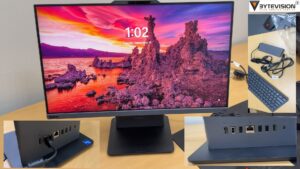
Reliable Hardware Installation and Onsite Support form the core foundation of a resilient IT infrastructure. While remote monitoring tools can handle software updates and minor troubleshooting, physical presence is indispensable when deploying new architecture, optimizing networks, or recovering from a hardware failure.
Deploying, maintaining, and supporting physical IT environments efficiently requires a structured approach to hardware care and onsite intervention.
1. End-to-End Hardware Installation Lifecycle
A professional deployment prevents future compatibility bottlenecks and reduces long-term maintenance costs. The process spans several distinct stages:
Procurement & Staging: Ensuring genuine hardware is sourced through authorized channels, complete with proper warranty coverage. Before arriving onsite, equipment is often pre-configured in an integration lab to minimize disruption during deployment.
+1
Physical Deployment & Rack Mounting: Handled carefully by technical experts, this includes assembling business workstations, securely mounting rack servers, and implementing structured cabling to maintain pristine, heat-efficient data environments.
Network & Infrastructure Commissioning: Setting up core network hardware like managed switches, enterprise firewalls, and wireless access points. Technicians map out IP addressing, configure VLANs, optimize Wi-Fi channels, and establish secure VPN gateways.
Peripherals & Access Systems: Integrating auxiliary business technology—including network printers, network video recorders (NVRs) for CCTV visibility, and smart access control readers—ensuring everything communicates flawlessly over the central local network.
2. The Scope of Onsite Technical Support
When a physical fault occurs, remote helpdesks hit a wall. Onsite support dispatches field engineers directly to the facility to handle hands-on diagnostics and immediate remediation.
Key Onsite Services:
Hardware Diagnostics & Component Replacement: Identifying root causes of hardware failure (e.g., faulty RAM, failing server storage drives, or compromised power supplies) and installing original replacement parts.
Network Infrastructure Repair: Troubleshooting physical link drops, repairing patch panels, and tracing faulty structural cabling to restore stable operations.
Disaster Recovery & Data Migration: Swapping out crashed storage media, implementing local RAID configurations, and verifying physical backup systems to ensure business continuity.
Office Relocation & Deployment: Safely dismantling complex rack setups, documenting configuration maps, transporting hardware, and commissioning the entire footprint at a new location with minimal downtime.
Computer Hardware Up-gradation Services @ Rs.2000/- to Rs.3000/-
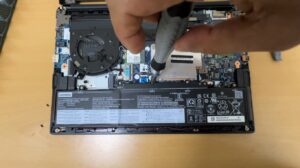
Whether you are looking to revitalize aging business workstations, optimize enterprise data center infrastructure, or design a high-impact marketing layout to pitch these exact services to corporate clients, a strategic hardware upgrade is one of the most cost-effective ways to maximize performance and extend technology lifecycles.
Below is a breakdown of essential hardware upgrade services, structured by platform tier, to ensure maximum efficiency, future-proofing, and scalability.
1. Enterprise Server & Infrastructure Upgrades
When dealing with enterprise rack servers (such as HPE ProLiant or Dell PowerEdge) and networking environments, upgrades are focused on minimizing bottlenecks, maximizing uptime, and expanding virtualized workloads.
Processor (CPU) Scalability: Upgrading to higher core-count or higher frequency processors within the same architectural socket generation to manage denser virtual machine (VM) environments.
Enterprise Memory (ECC RAM): Expanding capacity using Error-Correcting Code (ECC) Registered DIMMs to support multi-tasking database operations and prevent memory-related system crashes.
Storage & RAID Arrays: Transitioning legacy mechanical SAS/SATA drives to high-end enterprise Solid State Drives (SSDs) or NVMe storage, alongside upgrading RAID controller cache modules and backup batteries.
Network Interface & Connectivity: Upgrading standard gigabit infrastructure to 10GbE, 25GbE, or Fiber Channel PCIe cards to maximize throughput to core switches and storage area networks (SANs).
2. Business Workstation & Laptop Optimization
For fleet management and professional corporate setups, hardware upgrades breathe new life into existing assets, significantly delaying the high capital expenditure of full machine replacements.
+——————+————————————————+————————————-+
| Component | Primary Benefit | Ideal Target Workload |
+——————+————————————————+————————————-+
| NVMe/SATA SSD | Eliminates boot/load delays; 5x-20x faster | Legacy systems running Windows 10/11|
| DDR4/DDR5 RAM | Enhances seamless multitasking & app response | Heavy browser tabs, ERPs, Office 365|
| Dedicated GPU | Accelerates rendering, 3D modeling, & CAD | Engineering, Design, Video Editing |
| Thermal Overhaul | Prevents thermal throttling; extends lifespan | High-uptime office workstations |
+——————+————————————————+————————————-+
Storage Transitions: Swapping out older, mechanical hard drives (HDDs) for Solid State Drives (SSDs). This single upgrade provides the most noticeable performance leap in day-to-day business operations.
Memory Expansion: Bumping standard office laptops and desktops from 8GB to 16GB or 32GB, ensuring smooth deployment of modern operating systems like Windows 11.
Thermal Maintenance: Dust extraction, fan replacement, and application of high-grade thermal interface material (thermal paste) to prevent high-load thermal throttling.
3. Deployment Best Practices
To ensure a seamless hardware transition without data loss or deployment friction, a systematic workflow is essential:
Infrastructure Audit & Compatibility Check: Use diagnostic tools to ensure the existing motherboards, power supply units (PSUs), and firmware versions fully support the newer components.
Full Bare-Metal Backup: Before changing any storage or core system components, execute a complete system image backup to protect critical corporate and user data.
Firmware & BIOS Alignment: Flash the system BIOS, UEFI, and component firmware to the latest stable versions to guarantee absolute hardware compatibility and patch security vulnerabilities.
Stress Testing & Validation: Run rigorous benchmark loops (such as MemTest86 for RAM or Prime95/FurMark for power/thermal stability) to ensure the upgraded hardware handles peak operational demands reliably.